
Our Accounts Receivable Aging reports provide detailed financial information for patients who match the criteria you designate within the report search parameters. This includes Responsible Party only, Insurance only, or both. This report can be compared with the Balancing Worksheet and Practice Monitor by Date Range report to confirm its accuracy.
Note: The difference between the Accounts Receivable Aging by Patients and the Accounts Receivable Aging by Insurance and RP is only in how the report is grouped. Patients will be organized by the patient name or ID, and the Insurance and RP will be organized by Insurance company, then listed under the Responsible Parties subscribed for each Insurance company.
Report Filters
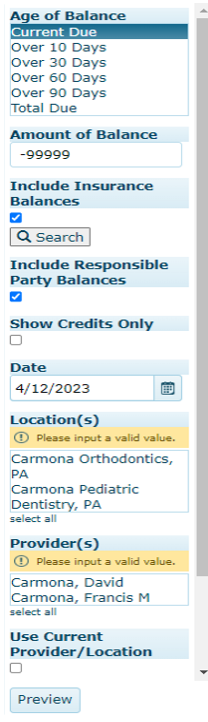
- Age of Balance – choose which applies for the specific need
- Current Due = Due today.\
- Over 10 (30, 60, or 90) = Days overdue from the Due Date
- Total Due = Includes future due.\
- Amount of Balance – default amount is ($99,999.00), this default will search for a credit balance. if looking for a past due balance, change the amount to 1.00
- Include Insurance Balances – check when you want to see Insurance Balances on the report
- Include Responsible Party Balances – check when you want to see RP Balances on the report
- Check both of the above if you want to see both included on the same report
- Show Credits Only – only check this when a report showing only credit balance is needed.
- The Amount of Balance should be left at ($99,999.00)
- Checking this box allows you to see Credits Only for Accounts Receivable. The Credit amount will always be in the Due Now because credits do not age in Cloud 9.
- Date – pick the date you need the A/R report to reflect
- Selecting today’s date will show you the totals as of that time. Selecting a previous date will show you totals as of 12am that day (if you want to include balances through that date selected, choose the following day).
- Locations – choosing a Location is optional, not checking any Locations will include them all on the report
- Check the Use Current Provider / Location box if the office has deleted providers.
- Please note, this filter must be selected to get accurate results.
- Show accounts with total due of zero- This option will show all patients that are showing Total Due of zero.
Report Summary (shown on final page of each report)
Report Totals:
- >10: Include charges that have been posted to the ledger longer than 10 days.
- 0-30: includes charges posted to ledgers between 0-30 days.
- 31-60, 61-90,>90: For clarity, these 3 will be grouped together. These 3 numbers combined equal the Total Past Due amount of $59,212.59 indicated under the >90 column.
- Due Now: This number will equal the Total Past Due+0-30 amount. ($59,212.59 + $9,120.27 = $68,332.86)
- Total Due: This number defines the total amount Due. This would be the sum of all numbers combined.
Note- The >10, 31-60, 61-90, and >90 amounts do not include credits, only charges. The 0-30, Due Now, and Total Due amount do include credits and charges as credits don't age.
- Report Count of Unique Patients: Total number of unique patients
- Report Count of Unique Responsible Parties: Total number of unique Responsible Parties
Report Count of Unique Insurance Companies: Total number of unique Insurance Companies
Note: This report is cumulative. Pulling a report for >90 will still show >10 >30 >60.
As always, if you have any further questions, please do not hesitate to reach out to Cloud 9 Support by emailing us at cloud9support@planetdds.com, or chatting us online using the chat bubble on the lower right at https://cloud9support.planetdds.com/hc/en-us, or giving us a call during our business hours of 8:00 AM EST to 8:00 PM EST at the 1.800.394.6050 option 2.